
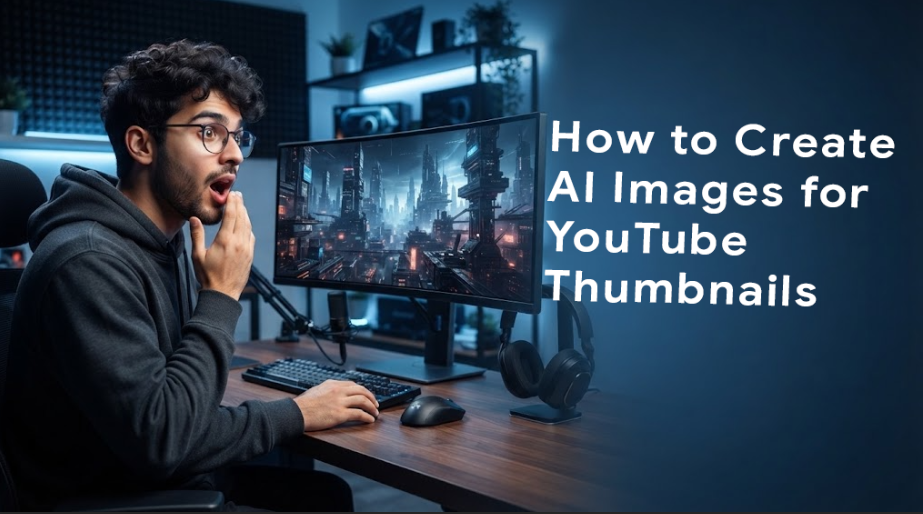
A YouTube thumbnail is often the first thing people see before deciding whether to watch a video.
A good thumbnail can quickly communicate what the video is about, create curiosity, and make your video stand out among hundreds of other videos.
Today, AI image generators make it much easier to create professional-looking thumbnail images without being an expert graphic designer.
You can describe an idea using a text prompt, generate an image, edit it, and then combine it with your title or other design elements.
In this guide, you’ll learn how to create AI images for YouTube thumbnails, how to write better prompts, what image styles work well, and how to turn an AI-generated image into a complete YouTube thumbnail.
What Is an AI-Generated YouTube Thumbnail?
An AI-generated YouTube thumbnail is a thumbnail that uses an AI image-generation tool to create some or all of the visual content.
For example, you could generate:
- A person reacting to something
- A futuristic technology scene
- A beautiful travel location
- A gaming character
- A food scene
- A business concept
- A music artist
- A dramatic landscape
- A product concept
- A tutorial illustration
You can then use an image editor such as Canva or another design application to add:
- Thumbnail text
- Logos
- Arrows
- Shapes
- Background effects
- Branding
The AI creates the visual foundation, while you control the final thumbnail design.
Best AI Tools for YouTube Thumbnail Images
Different tools are useful for different parts of the thumbnail workflow.
| Tool | Best For | Image Generation | Editing | Beginner Friendly |
|---|---|---|---|---|
| ChatGPT | Creating image concepts and AI images | ⭐⭐⭐⭐⭐ | ⭐⭐⭐⭐ | ⭐⭐⭐⭐⭐ |
| Google Gemini | AI image creation and editing | ⭐⭐⭐⭐ | ⭐⭐⭐⭐ | ⭐⭐⭐⭐⭐ |
| Adobe Firefly | Creative image generation | ⭐⭐⭐⭐ | ⭐⭐⭐⭐⭐ | ⭐⭐⭐⭐ |
| Midjourney | Artistic and cinematic images | ⭐⭐⭐⭐⭐ | ⭐⭐⭐⭐ | ⭐⭐⭐ |
| Leonardo AI | Characters and creative visuals | ⭐⭐⭐⭐⭐ | ⭐⭐⭐⭐ | ⭐⭐⭐⭐ |
| Canva | Complete thumbnail design | ⭐⭐⭐⭐ | ⭐⭐⭐⭐⭐ | ⭐⭐⭐⭐⭐ |
| Ideogram | Images containing text | ⭐⭐⭐⭐⭐ | ⭐⭐⭐⭐ | ⭐⭐⭐⭐ |
Features and availability can change, so check the current capabilities and licensing terms of each service before using generated images commercially.
What Makes a Good YouTube Thumbnail?
Before generating an AI image, understand what makes a thumbnail effective.
A good thumbnail usually has:
One Main Subject
Don’t fill the image with too many competing objects.
A single person, product, character, or main visual idea is often easier to understand.
Strong Contrast
The subject should stand out from the background.
For example:
Bright subject + darker background
or:
Dark subject + bright background
Clear Composition
The viewer should immediately understand where to look.
Leave enough empty space if you plan to add text later.
Emotion
For videos featuring people, facial expressions can create visual interest.
Examples include:
- Surprise
- Excitement
- Curiosity
- Happiness
- Shock
- Confidence
Simple Background
A complicated background can make the thumbnail difficult to understand when displayed at a small size.
Strong Visual Story
The image should give viewers a reason to ask:
“What happened?”
That curiosity can make the thumbnail more interesting.
YouTube Thumbnail Size
For standard YouTube thumbnails, a 16:9 landscape composition is commonly used.
A practical high-resolution working size is:
1280 × 720 pixels
You can also create the image at a larger resolution and resize it during the editing process.
The important thing is to keep the final design in a landscape format suitable for YouTube.
Step 1: Decide What the Thumbnail Should Communicate
Before opening an AI image generator, identify the main idea of your video.
For example, suppose your video title is:
“How AI Generates Realistic Images”
Your thumbnail could show:
- A realistic human portrait
- A futuristic AI interface
- An image transforming into another image
- A human looking at an AI-generated picture
- A dramatic computer screen
Don’t try to show the entire video in one thumbnail.
Choose one strong visual idea.
Step 2: Choose the Main Subject
Your prompt should clearly identify the most important object or person.
For example:
A young programmer looking at a futuristic AI-generated image on a large monitor
The main subject is the programmer.
The AI-generated image and monitor support the main idea.
Step 3: Describe the Background
Next, describe where the scene takes place.
Examples:
- Modern technology studio
- Futuristic office
- Tropical beach
- City at night
- Dark studio
- Gaming room
- Mountain landscape
- Professional photography studio
For example:
A young programmer looking at a futuristic AI-generated image on a large monitor inside a modern technology studio
Step 4: Add Lighting
Lighting can make a huge difference.
You can describe:
- Cinematic lighting
- Dramatic lighting
- Soft studio lighting
- Golden-hour lighting
- Neon lighting
- Blue ambient lighting
- High-contrast lighting
- Volumetric light
For example:
Cinematic lighting with dramatic highlights and soft background illumination
Step 5: Describe the Camera and Composition
Tell the AI how you want the image composed.
Useful terms include:
- Close-up
- Medium shot
- Wide shot
- Low-angle shot
- Eye-level camera
- Center composition
- Subject on the left
- Subject on the right
- Shallow depth of field
- Background blur
This is particularly important for YouTube thumbnails.
If you want text on the right side, ask the AI to keep the main subject on the left.
For example:
The person positioned on the left side of the frame with clean negative space on the right for large thumbnail text.
Step 6: Add the Visual Style
You can then describe the desired appearance.
For example:
- Photorealistic
- Cinematic
- Modern
- Premium
- Colorful
- Dramatic
- High detail
- Professional photography
- 3D render
- Futuristic
- Editorial photography
For a realistic technology thumbnail:
Photorealistic, cinematic, premium technology advertisement style, highly detailed
A Simple AI Thumbnail Prompt Formula
A useful formula is:
Subject + Action + Environment + Composition + Lighting + Style + Quality
For example:
A surprised young programmer looking at a glowing AI image on a computer monitor, futuristic technology studio, subject positioned on the left, empty space on the right for thumbnail text, dramatic blue and purple lighting, photorealistic cinematic photography, sharp details, high contrast, professional YouTube thumbnail composition, 16:9.
This gives the image generator much more useful information than simply saying:
“Create an AI thumbnail.”
10 AI Thumbnail Prompt Examples
1. AI Technology Video
A surprised young programmer looking at a futuristic AI-generated image on a large computer monitor, modern technology studio, subject on the left side, large clean space on the right for thumbnail text, dramatic blue lighting, glowing computer screens, photorealistic cinematic photography, high contrast, sharp details, professional YouTube thumbnail composition, 16:9.
2. AI Money Video
A confident young entrepreneur standing beside a laptop showing a growing business dashboard, modern office, large visual emphasis on the laptop and person, clean space for thumbnail text, bright dramatic lighting, realistic photography, premium business advertisement style, high detail, vibrant colors, 16:9.
3. AI Image Generation Video
A realistic human portrait transforming into a colorful digital artwork, dramatic split-screen composition, glowing particles between the two sides, dark studio background, vibrant colors, cinematic lighting, highly detailed photorealistic style, strong contrast, eye-catching YouTube thumbnail, 16:9.
4. AI Coding Video
A professional programmer sitting in front of multiple monitors filled with colorful code, futuristic software development environment, subject positioned on the left, empty dark area on the right for thumbnail text, dramatic monitor lighting, cinematic atmosphere, photorealistic, sharp details, 16:9.
5. AI Tools Video
A futuristic workspace featuring multiple glowing AI assistant interfaces floating around a laptop, one surprised person looking at the screen, modern dark technology studio, dramatic lighting, colorful blue and purple glow, photorealistic, premium technology advertisement, highly detailed, YouTube thumbnail composition, 16:9.
6. Travel Video
A beautiful tropical beach with crystal-clear turquoise water, palm trees, dramatic sunset sky, a traveler standing in the foreground looking toward the ocean, cinematic composition, vibrant colors, realistic travel photography, strong contrast, highly detailed, eye-catching YouTube thumbnail, 16:9.
7. Music Video
A beautiful female dancer performing on a tropical beach at sunset, ocean waves behind her, flowing clothing, warm golden light, cinematic atmosphere, vibrant tropical colors, realistic photography, dynamic movement, premium Afro house music visual style, highly detailed, eye-catching YouTube thumbnail, 16:9.
8. Gaming Video
A dramatic futuristic gamer sitting in front of a large gaming monitor, intense expression, colorful RGB lighting, futuristic gaming room, dramatic shadows, strong contrast, cinematic photography, highly detailed, energetic atmosphere, professional gaming YouTube thumbnail, 16:9.
9. Programming Tutorial
A professional software developer looking at a large screen displaying clean colorful source code, modern developer workspace, subject positioned on the left side, clean dark space on the right for large text, cinematic lighting, realistic photography, high detail, sharp focus, professional YouTube thumbnail, 16:9.
10. AI Future Video
A human hand reaching toward a glowing futuristic artificial intelligence interface, digital particles and neural network patterns surrounding the interface, dark futuristic environment, dramatic blue and violet lighting, cinematic composition, photorealistic, extremely detailed, strong contrast, futuristic technology YouTube thumbnail, 16:9.
Step 7: Generate Multiple Versions
Don’t stop after generating one image.
Create several variations.
For example:
Version 1: Close-up
Version 2: Wider composition
Version 3: More dramatic lighting
Version 4: Different facial expression
Version 5: Subject on the opposite side
Then compare them.
The first AI-generated image is not necessarily the best one.
Step 8: Leave Space for Text
This is one of the most important techniques for AI thumbnails.
If your thumbnail needs text, don’t ask the AI to fill the entire image.
Instead, specify where the text will go.
For example:
Subject positioned on the left side with clean negative space on the right for large bold thumbnail text.
This gives you a better layout when you edit the image.
Should AI Generate the Thumbnail Text?
Usually, it is better to add the final thumbnail text using a design tool.
AI-generated text inside images can sometimes contain:
- Spelling errors
- Incorrect letters
- Random words
- Distorted typography
A better workflow is:
AI image → Canva or image editor → Add text → Final thumbnail
Step 9: Add Thumbnail Text
Keep thumbnail text short.
Instead of:
“The Complete Beginner’s Guide to Using Artificial Intelligence”
Try:
AI MADE THIS?
or:
CREATE AI IMAGES
or:
AI CHANGED CODING
The video title can provide the detailed information.
The thumbnail should communicate the idea quickly.
Thumbnail Text Examples
| Video Topic | Possible Thumbnail Text |
|---|---|
| AI Image Generation | CREATE WITH AI |
| AI Coding | AI CAN CODE! |
| AI Tools | 10 AI TOOLS |
| AI Money | MAKE MONEY WITH AI |
| AI Video | AI MAKES VIDEOS |
| ChatGPT | CHATGPT TRICKS |
| AI Music | AI MADE THIS SONG |
| Programming | CODE FASTER |
| AI Future | THE AI FUTURE |
| AI Business | AI FOR BUSINESS |
Keep the words short enough to remain readable on a smartphone.
Step 10: Add Branding
If your channel has a recognizable brand, keep your visual identity consistent.
You can use:
- A small logo
- Consistent fonts
- Similar colors
- A recognizable design style
- Consistent placement
Don’t make your logo so large that it becomes the main focus.
The subject and video idea should remain the most important elements.
Step 11: Create Contrast
A thumbnail needs to work when it is very small.
After creating your thumbnail, reduce it to approximately the size viewers might see in YouTube recommendations.
Ask yourself:
Can I still understand the image?
If not:
- Remove unnecessary objects
- Increase subject size
- Simplify the background
- Increase contrast
- Reduce text
- Make the main subject more prominent
Step 12: Test Different Thumbnail Concepts
You can create several concepts for the same video.
For example:
Concept A
Large face + emotional expression + short text.
Concept B
Large product + dramatic background + short text.
Concept C
Before-and-after comparison.
Concept D
One surprising visual with almost no text.
Different videos may benefit from different visual approaches.
AI Thumbnail Workflow
A simple workflow looks like this:
1. Choose your video topic
↓
2. Identify the main visual idea
↓
3. Write an AI image prompt
↓
4. Generate several images
↓
5. Choose the strongest composition
↓
6. Edit the image
↓
7. Add short thumbnail text
↓
8. Add branding
↓
9. Check the thumbnail at small size
↓
10. Export the final image
This process can be completed much faster than creating every visual element from scratch.
Common AI Thumbnail Mistakes
1. Too Much Text
A thumbnail isn’t a blog article.
Don’t try to explain everything.
Use a few powerful words.
2. Too Many Objects
A thumbnail with 15 different objects can become confusing.
Choose one main visual idea.
3. Tiny Main Subject
If the person or product is too small, viewers may not understand the image.
Make the important subject large enough to be visible.
4. Weak Contrast
If the subject blends into the background, the thumbnail may disappear among other videos.
Use lighting and contrast to separate the subject.
5. Fake-Looking Faces
Some AI-generated people can look unnatural.
Check:
- Eyes
- Hands
- Teeth
- Facial expressions
- Skin
- Hair
- Body proportions
6. Random AI Text
Don’t depend on AI to generate important words inside the image.
Add the final text during editing.
7. Copying Another Creator’s Thumbnail
AI makes it easy to imitate visual styles.
But creating a recognizable visual identity for your own channel is generally more useful than simply copying another creator.
How to Make AI Thumbnails Look More Realistic
If you want realistic thumbnails, include details such as:
- Photorealistic
- Natural skin texture
- Realistic lighting
- Professional photography
- Natural facial expression
- Sharp focus
- Realistic shadows
- Detailed environment
- Cinematic depth of field
For example:
Photorealistic professional photography, natural skin texture, realistic facial expression, physically accurate lighting, detailed environment, sharp focus, cinematic depth of field.
Avoid adding too many unnecessary style keywords.
A simple, specific prompt can often work better than a huge collection of random terms.
How to Make Thumbnails More Colorful
For music, gaming, entertainment, and lifestyle videos, stronger colors can help create a more energetic visual.
You can use terms such as:
- Vibrant colors
- Rich colors
- Colorful lighting
- Neon highlights
- Golden sunset
- Tropical colors
- Saturated background
- Cinematic color grading
But don’t make everything extremely colorful.
The main subject should still stand out.
AI Thumbnail Ideas by YouTube Category
| YouTube Category | AI Thumbnail Idea |
|---|---|
| Technology | Futuristic computer or AI interface |
| Programming | Developer + large code screen |
| AI | Human + futuristic AI interface |
| Music | Artist/dancer + dramatic environment |
| Travel | Person + beautiful destination |
| Food | Close-up food + chef |
| Gaming | Gamer + dramatic game scene |
| Finance | Person + charts or business concept |
| Fitness | Athlete + dramatic lighting |
| Education | Teacher/student + visual concept |
| Business | Entrepreneur + business environment |
| Tutorials | Person demonstrating the main subject |
AI Thumbnail Prompt Template
You can reuse this template for almost any YouTube video:
Create a professional YouTube thumbnail image about [VIDEO TOPIC]. Show [MAIN SUBJECT] [ACTION]. Place the main subject [POSITION]. Use [BACKGROUND/ENVIRONMENT]. Add [LIGHTING STYLE]. Make the image [VISUAL STYLE]. Use strong contrast, clear composition, realistic details, and a visually striking professional appearance. Leave clean negative space on [LEFT/RIGHT] for thumbnail text. 16:9 landscape composition.
For example:
Create a professional YouTube thumbnail image about AI coding. Show a surprised programmer looking at a futuristic screen filled with code. Place the programmer on the left side. Use a dark modern technology studio background. Add dramatic blue and purple lighting. Make the image photorealistic and cinematic with strong contrast, realistic details, and sharp focus. Leave clean negative space on the right for thumbnail text. 16:9 landscape composition.
Final Checklist Before Uploading
Before using your thumbnail, check these points:
- Main subject is obvious
- Image is landscape
- Thumbnail works at small size
- Text is easy to read
- Text is short
- Background isn’t too busy
- Subject has strong contrast
- Faces and hands look natural
- Logo isn’t too large
- Thumbnail matches the video
- Image doesn’t misleadingly promise something the video doesn’t contain
- You have the necessary rights to use the image and any included assets
Final Thoughts
AI image generators have made it much easier for YouTubers to create unique thumbnail concepts.
You don’t need to be a professional designer to get started.
The basic process is simple:
Choose an idea → Write a clear prompt → Generate images → Select the best composition → Edit → Add text → Export
The most important part is not the AI tool itself.
It’s the idea, composition, emotion, contrast, and clarity of the final thumbnail.
Use AI to create the visual foundation, then use a design tool to control the final layout.
And remember that a beautiful thumbnail is only useful when it accurately represents the video.
Create thumbnails that make viewers curious, but make sure the video delivers what the thumbnail promises.